Help / Getting started
A tour of the Vesari Stylus window
Everything in Vesari Stylus happens in one window: a slim bar across the top, destinations down the left, the page you are working on in the middle, and the player along the bottom. Learn those four regions once and the rest of this help centre reads like directions you already know.
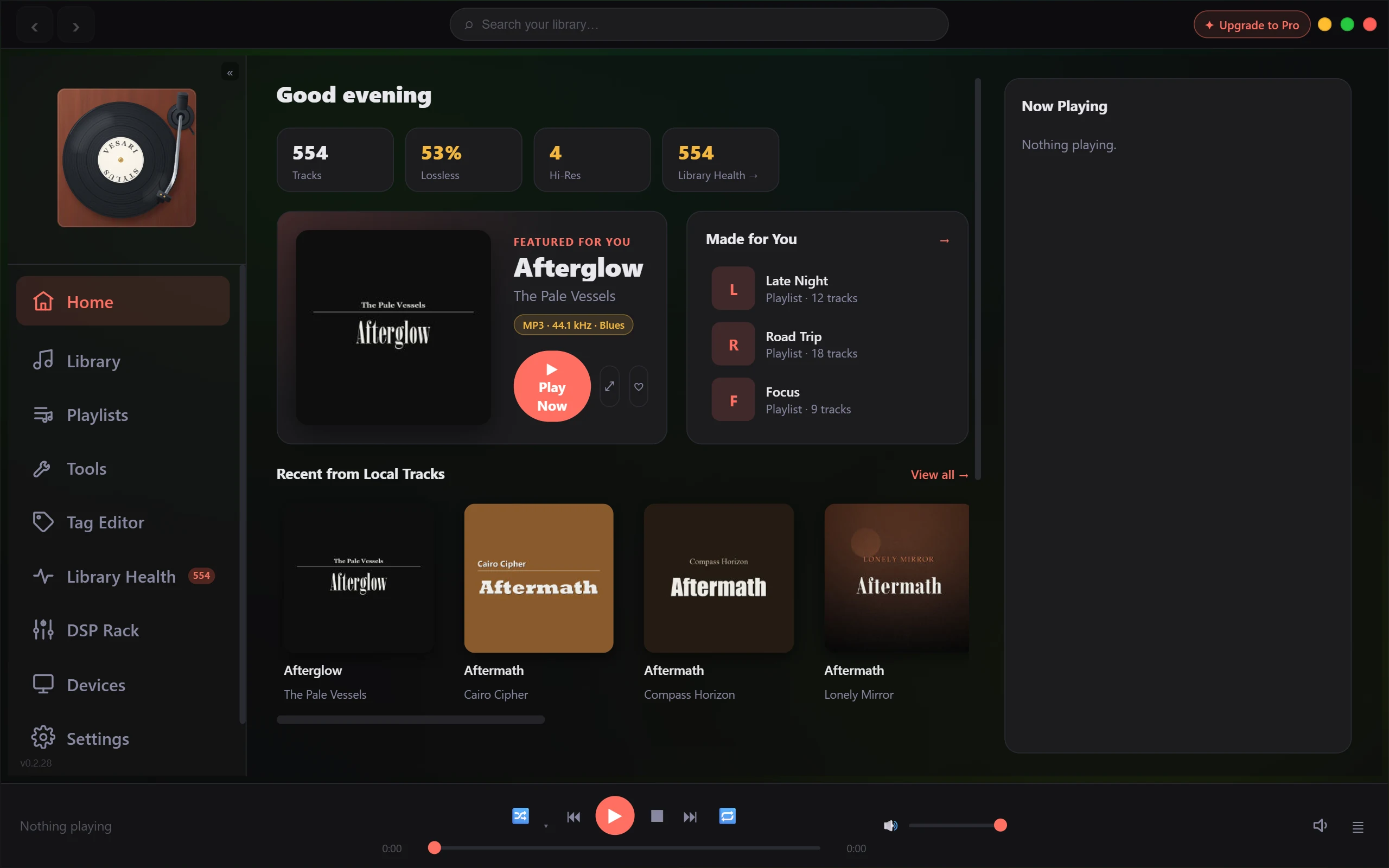
The four regions
Vesari Stylus draws its own window frame instead of the standard Windows one, so the top strip carries the window buttons and the library search rather than just a title. The rail picks the page, and the player stays put, so moving around never interrupts what is playing.
The bar along the top
At the far left are back and forward arrows. They step through the places you have already been, the way a browser does, and grey out when there is nowhere to go.
In the middle is the search box, marked Search your library. Type a few words and press Enter: Vesari jumps to Library, clears any album, artist or genre filter, and shows what matched. It searches your own music, not the internet.
At the right sit minimize, maximize and close, plus, unless you are on Lifetime, an upgrade pill that opens the plan comparison. See Free, Pro & Lifetime - what each tier includes.
The left rail
Nine destinations, always in this order.
Home is a starting point rather than a list: a featured album with Play Now, a Made for You panel of your playlists, a Recent from Local Tracks row, shelves drawn from your own listening, and your current Queue. See Rediscovery - surface music you forgot.
Library is everything you have added, in one place. It opens on the track list, with its own Search tracks box and a count of the tracks on show. Albums and Artists switch to grids, and a Genres dropdown narrows it down. See Add your music (the first scan).
Playlists holds your own running orders as a grid of cards, with + New Playlist in the header. See Playlists.
Tools is the dashboard for anything that takes a while: cards for Import Music, Add Folder, Vesari RipCore, Rescan Library, Super-Tag, Tag Editor and Library Health. A working card shows its progress, and keeps it if you wander off and come back. See Rip a CD to your library and Super-Tag - automatic tagging and artwork.
Tag Editor is where you fix titles, artists, album names and artwork by hand, on one track or a whole selection. See The tag editor - fix tags by hand.
Library Health is the standing check on your collection. Its rail item carries a badge counting the tracks that need attention, and hovering spells out the exact number. See Library Health & finding duplicates.
DSP Rack is the sound-shaping page: an Equalizer panel, Parametric EQ, Crossfeed, a live Spectrum, output meters, a Bit-perfect mode switch and the Signal Path readout. Switching it on greys out the processing panels, because the chain is bypassed. See The graphic EQ & presets, Parametric EQ - surgical tone control and The signal path & the bit-perfect badge.
Devices is where your music comes out. The left panel lists the output devices Windows sees, ticking the active one. Device Details on the right holds an Audio Engine row (WASAPI Exclusive, ASIO and Shared, with ASIO not selectable in this build), the Audio Route figures for sample rate, bit depth and channels, a WASAPI Exclusive toggle, a read-only Bit-perfect line, and a shortcut to audio settings. The toggle is a request you make; the Bit-perfect line only reports. It shows the verdict the engine reached for the stream playing now, or the most recent one once you stop, and reads as a dash until something has played. It is worked out per stream rather than read off your output mode, so the two can disagree. See Choosing an output mode: Shared, Exclusive & ASIO.
Settings is tabbed: General, Authentication, Library, Playback, Support, Advanced, Logs and About. Theme and accent live in General, your licence in About, the Report a Bug form in Support. See Activating your licence.
The player along the bottom
On the left, the cover, title and artist of what is playing, plus a format badge and a heart. Title and artist link to that album or artist.
In the middle, the transport: shuffle, previous, play and pause, stop, next, repeat, the scrubber and volume.
On the right, an output icon whose popover names the device you are listening through, and a queue button carrying the number of tracks waiting. See The play queue & "Up Next".
Collapsing the rail
The rail starts narrow, showing icons only. Click the chevron at its top to expand it, or press Ctrl+B. Once expanded you can drag its right edge anywhere between 160 and 400 pixels. Vesari remembers whether you left it collapsed or expanded, but not the width, so that starts fresh each session. Collapsed, the Library Health count shrinks to a dot and the version number is hidden.
If something is not where this page puts it
Vesari Stylus changes between releases, so a control may have moved since this was written. Your installed version sits at the foot of the expanded rail. If you are current and something here is missing, tell us with the Report a Bug form under Settings, naming the screen.