Help / DSP Rack
Parametric EQ - surgical tone control
DSP Rack → Parametric EQ (quick graph), or Settings → Parametric EQ (full editor). A parametric EQ lets you boost or cut any frequency, by any amount, over any width - as many bands as you like. It's the precision tool that sits alongside the fixed graphic EQ.
Why a parametric EQ (and not just the graphic EQ)?
The graphic EQ has ten fixed sliders at fixed frequencies (31 Hz, 63, 125 … 16k), each a fixed width. It's great for quick, broad tonal shaping - "a bit more bass," "less treble." But the bands are where they are: you can't put a cut exactly where a problem lives, and moving one slider always drags a fixed slice of the spectrum with it.
Real problems are rarely on those exact centres:
- A room mode booming at ~58 Hz, between the 31 and 63 sliders.
- Harsh sibilance ("essss") concentrated around 6-7 kHz.
- A honky / nasal resonance at 900 Hz from a bright speaker.
- A single ringing resonance you want to remove without touching anything else.
A parametric EQ fixes these because you control all three things about each band:
| Control | What it does | Example |
|---|---|---|
| Frequency | Where the change happens (20 Hz … 20 kHz) | Park a band right on the 58 Hz boom |
| Gain | How much - boost (+) or cut (−) | −4 dB to tame it |
| Q | How wide - low Q = broad/gentle, high Q = narrow/surgical | High Q so only the boom moves, not the whole bass |
That combination is the point: you can make a narrow, precise cut that a graphic EQ would smear across two or three neighbouring bands. Parametric for fixing specific things; graphic for quick broad strokes. They stack - use both.
The filter types
The graph adds plain bell (peak/dip) bands - the everyday workhorse. The full editor in Settings offers the rest:
- Bell - a boost or cut centred on the frequency; Q sets the width. The default.
- Low shelf / High shelf - lift or drop everything below / above a frequency (gentle "more warmth" / "more air" tilts).
- Low pass / High pass - roll off everything above / below a frequency (no gain; Q sets the steepness). Good for trimming subsonic rumble or harsh top.
- Notch - a very narrow, deep cut to kill a single resonance or hum.
(Low/high pass and notch have no gain - their node rides the centre line and you only move it left/right.)
How to use ours
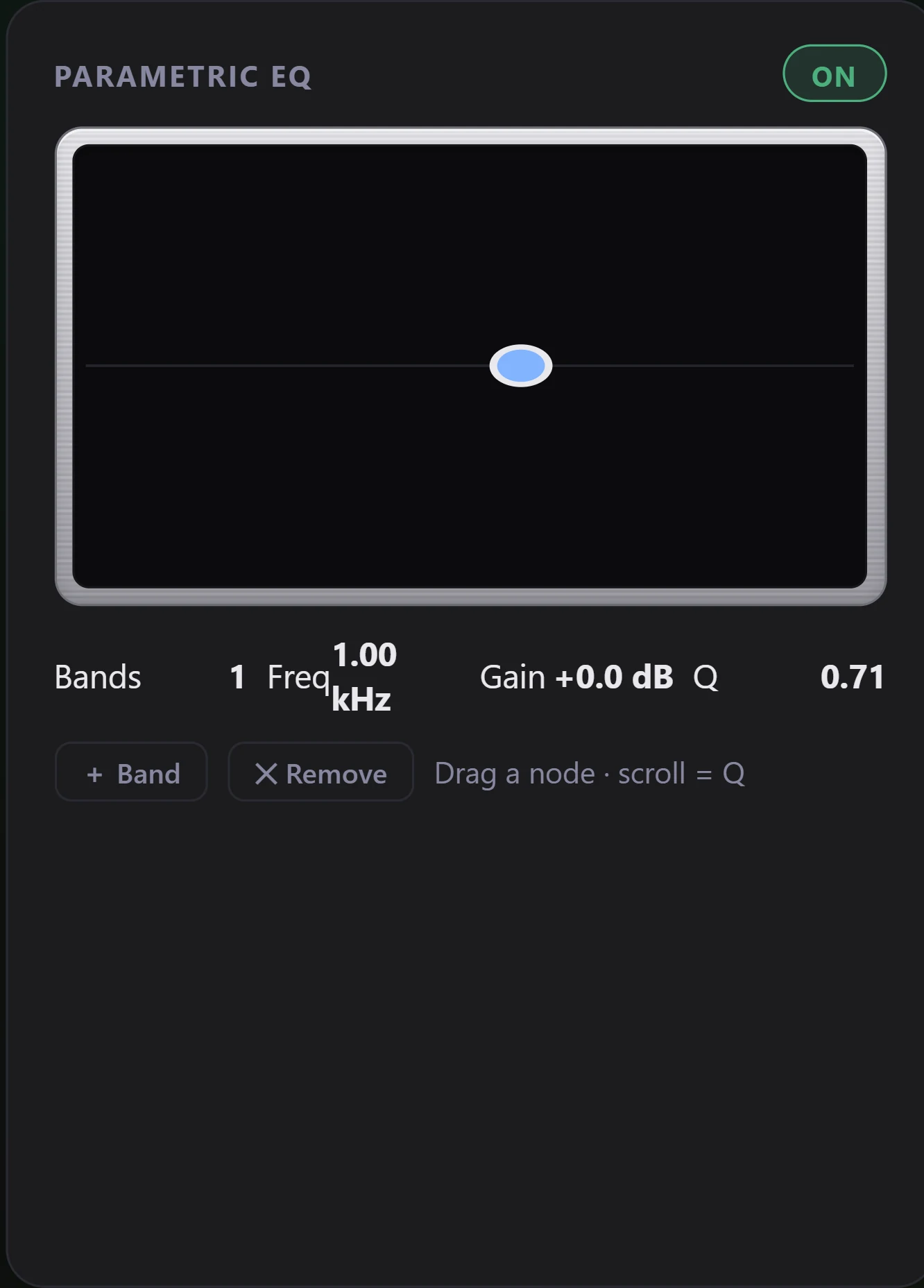
DSP Rack → Parametric EQ is a live graph - frequency runs left→right (low→high), gain runs up/down (centre line = 0 dB):
- + Band adds a bell band to the curve. It arrives switched on, so the header flips to ON as soon as the first band lands.
- The ON/OFF button (top-right of the panel) bypasses the bands you have added. With no bands yet it does nothing.
- Drag a node to shape it: left/right = frequency, up/down = gain (±12 dB on the graph).
- Scroll over the graph to set the selected band's Q - scroll up for narrower (more surgical), down for wider (gentler).
- The selected node is highlighted, and the Freq / Gain / Q readout below shows its exact values.
- ✕ Remove deletes the selected band.
For finer control - typing exact numbers, the other filter types, shelves and passes, or more bands (up to 32) - open the full editor in Settings. Changes in either place are the same bands and apply instantly.
Common moves (start small)
- Tame sibilance / harshness - a narrow cut (high Q) of a couple of dB around 5-8 kHz.
- Reduce boom / mud - a cut around 80-250 Hz; widen Q if the whole low end is heavy, narrow it for a single room boom.
- Add "air" - a gentle high-shelf lift above ~10 kHz (full editor).
- Add warmth - a gentle low-shelf lift below ~150 Hz (full editor).
- Kill a resonance - a high-Q notch right on the offending frequency.
Rule of thumb: cuts sound more natural than boosts, and 1-3 dB goes a long way. If you're reaching for big boosts, the problem is usually something to cut elsewhere.
Notes & limitations
- It affects all playback. The EQ is a processing stage in the output chain, so it applies to everything you play, in real time.
- It changes the signal. Any active EQ band means the audio is being altered on its way to the output. To take the EQ back out of the chain, switch it off. See Output meters for how the level meters reflect the processed output.
- The graph is a guide. The line through your nodes shows roughly what you're doing; it isn't a measured room response. Trust your ears.
- Subtle wins. Small, targeted moves beat big ones - and fewer bands usually sound cleaner than many.
FAQ
Graphic EQ or parametric - which should I use? Graphic for quick, broad tone ("more bass, less treble"). Parametric to fix a specific problem at a specific frequency, or for shelves and steep filters. They work together - the parametric is the scalpel, the graphic is the broad brush.
What is Q, really? It's the width of a band. Low Q is broad and gentle (affects a wide range around the frequency); high Q is narrow and surgical (affects just a sliver). Use high Q to remove one resonance, low Q for musical tonal shaping.
My change is too subtle / I can't hear it. EQ moves are often small by nature. Make sure the band is ON, try a few more dB, or narrow the Q so the change is concentrated. A ±1 dB wide bell is deliberately gentle.
Does using EQ hurt sound quality? A well-judged EQ that fixes a real problem almost always improves perceived sound. It does mean the signal is being processed, which is a fair trade when it solves a genuine speaker/room/recording issue. Keep moves modest and you won't hear artefacts.
How many bands can I have? Up to 32. But more isn't better - a handful of well-placed bands usually beats a busy curve.
Related: Output meters - VFD, VU, PPM & LUFS · ReplayGain: what it does and how to use it.