Help / Your library
The tag editor - fix tags by hand
When automatic tagging gets something wrong, or a track arrives with no metadata at all, the tag editor lets you type the details in yourself - for one track or for a whole batch at once.
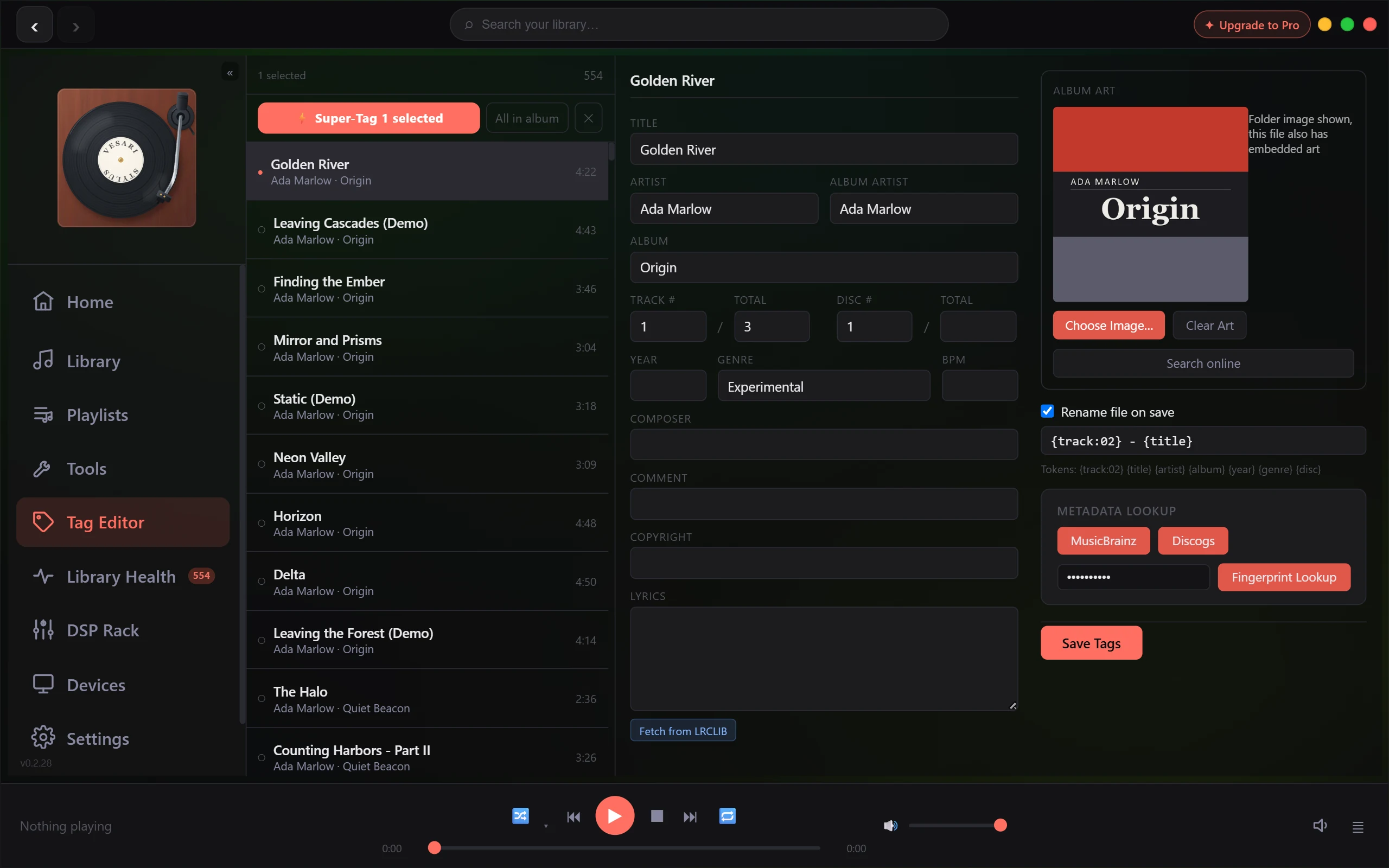
Reach for it when you want direct control: correcting a misspelled album, filling in a missing year, setting the right cover art, or renaming files to a tidy pattern. It sits alongside Super-Tag, which does the same job automatically. Use the tag editor when Super-Tag can't find a match, guesses wrong, or when you already know the right answer and simply prefer to type it in.
Editing a single track
This is the most precise way to work, and it's free for everyone.
- Open the tag editor and select a track.
- Edit any field you like - title, artist, album, album artist, track and disc numbers, year, genre, BPM, composer, comment, copyright, and lyrics.
- Click Save Tags (in the pop-up editor, which opens when you right-click tracks and choose Edit Tags (Edit N Tags with several selected), or from the Add tags in Tag Editor or Edit these tracks in Tag Editor button on a finished rip, the button just says Save). Your changes are written into the file itself, and your library updates straight away. (A raw DTS, AC-3 or TrueHD file, or a WAV holding a DTS or AC-3 stream, keeps its text tags in the library and, where the folder allows, a
.tagssidecar: see Tagging DTS, AC-3 and WAV files. Any other WAV whose tags the app cannot read keeps the edit in the library only: see Tags will not save to a WAV file.)
If a file has no embedded tags yet, the pop-up editor shows a note that the values came from your library (usually read from the filename and folder). Review them, correct anything that's off, and save to write them into the file for the first time. (For the file types in step 3 that keep their tags in the library, saving puts them there instead.)
Editing many tracks at once
To fix a whole album or a batch of tracks together, hold Ctrl and click each track you want, or use the button to select every track on an album. Then edit the shared fields - artist, album artist, album, year, genre and comment. (The pop-up editor offers composer in place of comment.)
The golden rule: only the fields you fill in get written. Anything you leave blank is left untouched on every track, so you won't accidentally wipe individual titles or track numbers. It's the quick way to set one correct album name or genre across dozens of files in a single save.
When you need per-track detail afterwards - different titles, different track numbers - choose Edit Each Track in the Tag Editor tab. It first saves the shared fields to the selected tracks as one multi-track save, even if you changed none of them. On Free and during the trial that counts toward the allowance and stops where the allowance does. It then steps through the selection one track at a time; each track has Save and Save & Next (Save & Finish on the last one).
Editing many tracks at once is one of the premium power tools. Everyone gets a generous free taste of it, and a Pro upgrade removes the cap so you can bulk-edit as much as you like. Single-track editing is always free.
Adding artwork
In the Tag Editor tab you can set cover art whether you're editing one track or several:
- Choose Image… (Set Art for All Selected… when several tracks are selected) to embed a picture from your own computer.
- Search online to look up cover art by artist and album, then click a result to embed it.
- Clear Art removes the embedded artwork, one track at a time.
When several tracks are selected, the image you pick is applied to all of them. The pop-up editor has art buttons only when it is open on one track: Choose image…, Search art and Clear.
Renaming files as you save
When you're editing a single track, you can tick Rename file on save and give a pattern built from the track's own tags. Available tokens include:
{track}- the track number (use{track:02}to pad it, like 01, 02){title},{artist},{album},{year},{genre},{disc}
For example, {track:02} - {title} produces files like 04 - Wish You Were Here. Renaming happens only when you save, and only for single-track edits - bulk edits never rename your files.
Tag editor or Super-Tag?
Both write to the same tags, so it comes down to which suits the moment.
- Super-Tag is best when you have lots of tracks and want the app to identify and fill them in for you.
- The tag editor is best for hand-corrections, one-off fixes, and cases where you know the right answer and just want to type it in.
A common workflow is to run Super-Tag first, then open the tag editor to tidy up anything it missed or got wrong.