Help / CD ripping
Rip a CD to your library
Put a disc in your drive and Vesari reads it, works out what album it is, and saves lossless copies into your library - tagged, with artwork, ready to play. There's no "start" button to hunt for: the player watches your drive like a real CD deck, so a disc loads the moment you drop it in.
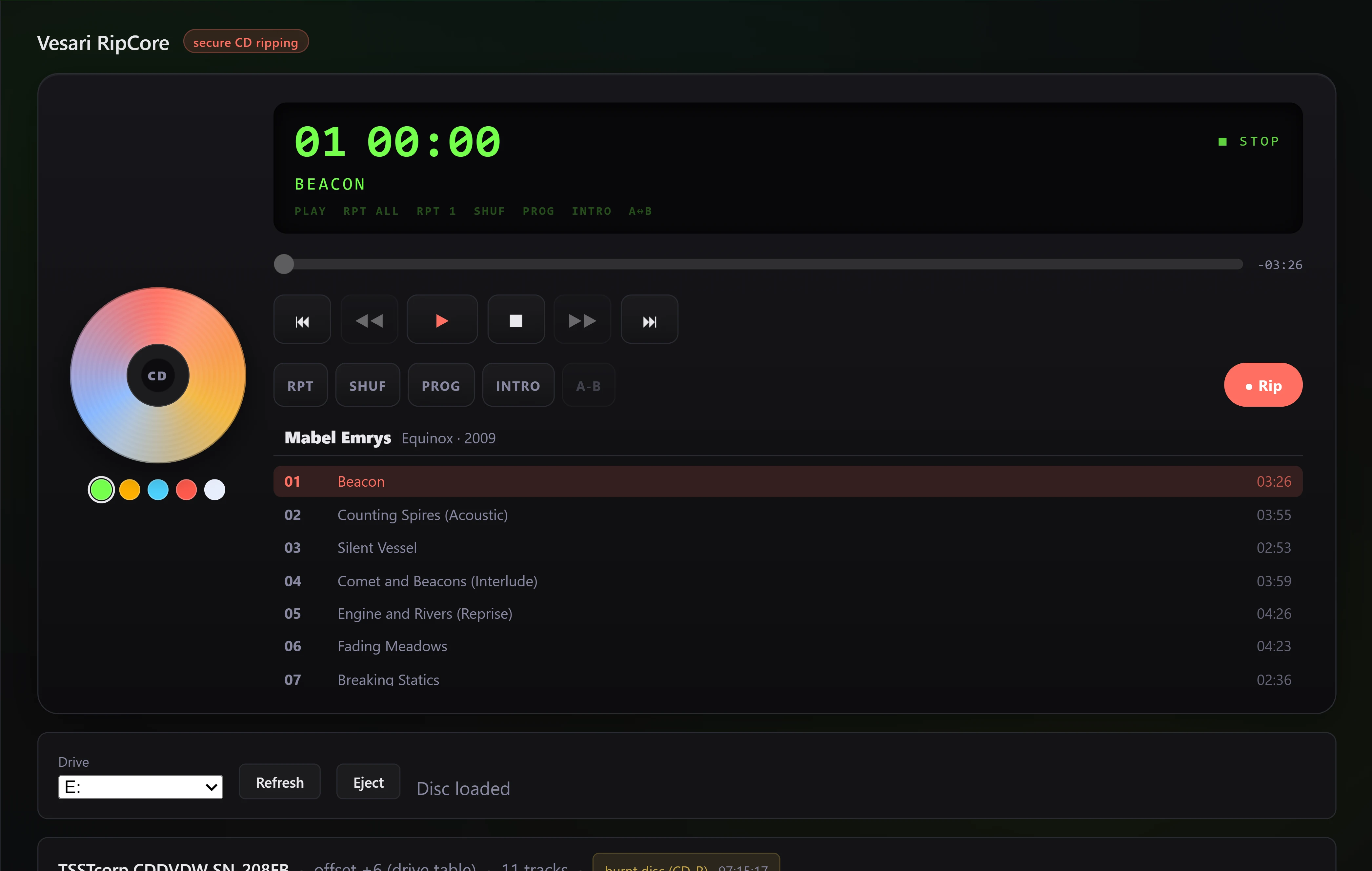
Rip a disc, step by step
- Insert the CD. You'll see "Identifying disc…" for a moment, then the artist, title and track list fill in.
- Check the match. If more than one edition matches, pick the right one from the Release match list - handy for remasters or region-specific pressings.
- Choose where it goes. Under Add to library folder, pick the folder to file the album into.
- Pick Secure or Burst (more below). Secure is the default and the safe choice.
- Press Rip CD. You'll watch each track progress, then Vesari tags the album, fetches artwork and lyrics, and adds it to your library.
If you'd rather listen first, the CD-player face has full transport - play, skip, repeat, shuffle, even an A-B loop - and a ● Rip button to rip from there.
Secure vs. Burst
- Secure (recommended) - reads each track twice and recovers from read errors, so the copy is verified against itself. About twice as slow, and what you want for anything you care about.
- Burst - a single fast pass, for a clean disc you're not fussed about, when speed matters more than the extra checking.
Your drive matters too: Vesari applies the right read offset for it automatically, but a worn or cheap drive is likelier to hit read errors - which is why Secure's double reads are worth the time on discs that matter.
How the result is checked
Vesari also looks each disc up in the CueTools database, a shared catalogue of discs other people have ripped. If your disc is found, you'll see a confidence figure: how many rips that database holds of the most-submitted version of a disc with your disc's layout. It is a sign the disc is well known, and a rough measure of how much agreement exists about what it should contain. It is not a check on your own rip - the lookup happens when the disc goes in, before a single sector is read, and it keys on layout rather than sound. A detailed rip log is saved beside your files too, so the result stays verifiable later.
An honest note: this is a local, self-consistent read plus a community cross-check - not a guaranteed bit-for-bit match to a master. Now and then a track (often an unreadable disc run-out) is saved but marked unverified: it plays fine, it just couldn't be fully confirmed.
What you end up with
Tracks are saved as FLAC - lossless, nothing thrown away - tagged from the disc's own identity (ISRC codes and acoustic fingerprinting), with cover art and lyrics added, all filed into the folder you chose. If the album is already in your library at lower quality, Vesari offers to upgrade and replace it, keeping your play history intact.
The free rip allowance
Ripping is a power tool, so it's free for your first few discs - five - to try it out. After that it unlocks with a paid licence, and you can rip as many as you like. Only the disc count is limited on the free tier; everything else about ripping stays the same.