Help / Playback & output
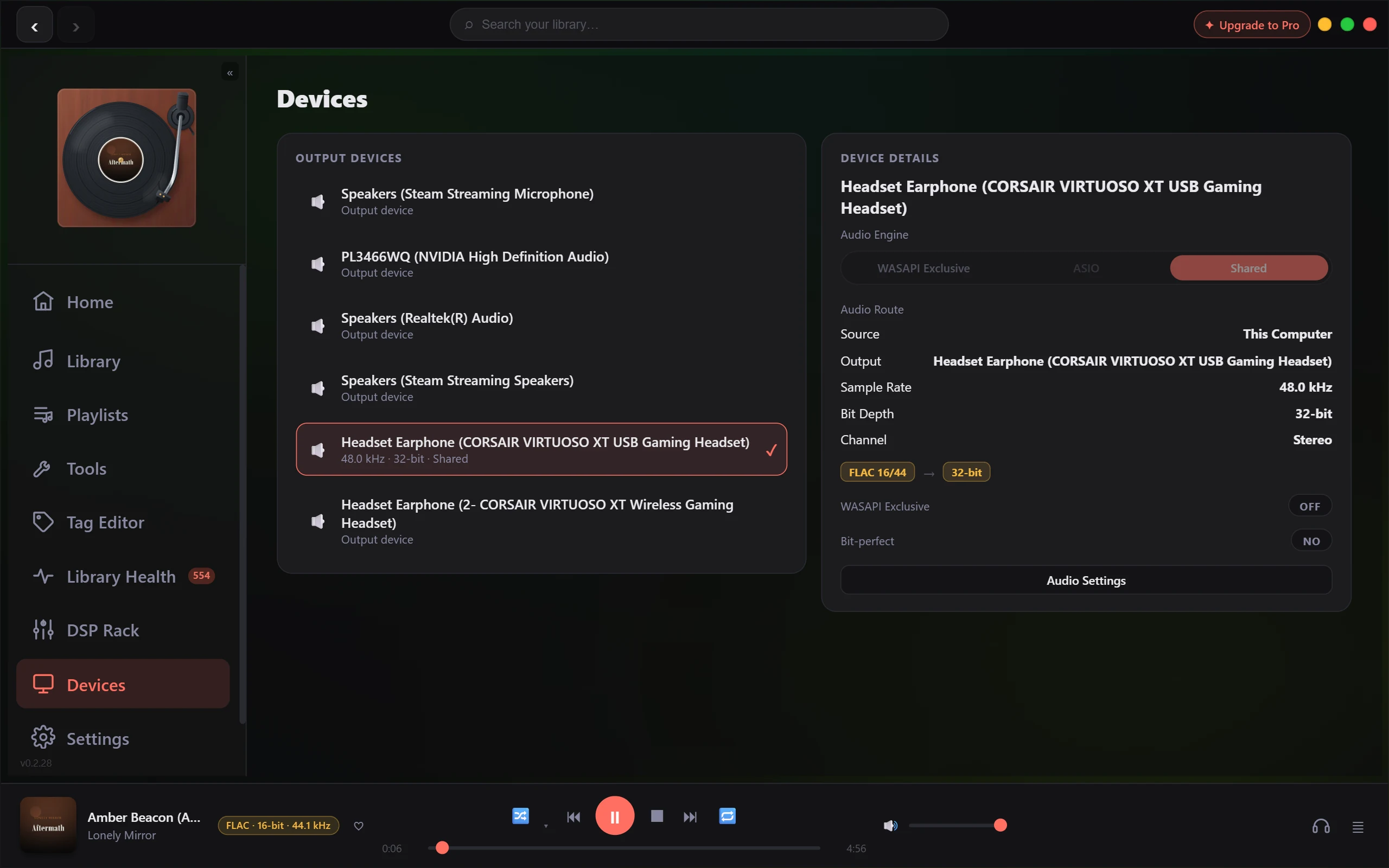
Choosing an output mode: Shared, Exclusive & ASIO
Vesari Stylus can hand your music to your audio device in a few different ways. Here's how to pick the one that fits how you listen.
You'll find these choices in the output settings, alongside where you pick which device plays your music. Most people never need to touch this - the default just works. But if you want the most direct path to a DAC or a dedicated audio interface, the mode matters. Rather than worry about the acronyms, ask yourself what you want.
The short answer
- You just want it to work, and to hear system sounds too - stay on Shared. It's the safe default.
- You want the most direct path for focused listening - choose Exclusive.
- You have an external DAC or interface with its own dedicated driver - ASIO is the mode for you (arriving in an upcoming update; see below).
Shared works for everyone. Exclusive is a premium output feature, unlocked with a Lifetime licence; ASIO is also a Lifetime feature, arriving in an upcoming update.
Shared - the safe default
Leave Shared selected unless you have a reason not to.
In this mode your music passes through Windows' own audio system on the way to your device. It mixes politely with everything else on your PC - notification dings, a video in your browser, another app's audio - and it works on essentially any device without fuss. The trade-off is that Windows sits in the path and may adjust the audio (for example, resampling it) before it reaches your device.
For most listening, this is completely fine. Choose Shared when you want zero hassle and don't mind sharing the device with the rest of your system.
Exclusive - the most direct path
Exclusive mode is for focused listening.
Here Vesari Stylus takes sole control of your audio device and hands the music to it as directly as possible, stepping around the Windows mixer. Nothing else on your PC can play through that device while you're listening - which is the point.
A couple of things to know:
- Other apps go quiet on that device while Vesari Stylus is playing. System sounds and other players won't be heard until you stop or switch back to Shared. That's expected.
- Some devices won't allow it. If the device is already in use by another app, or its driver refuses exclusive access, Exclusive can't start - and the app tells you why rather than failing silently. If you hit that, see the troubleshooting article linked below, or switch to Shared to keep the music playing.
ASIO - for DAC and interface owners
ASIO is a specialised path used by many external DACs and pro audio interfaces. It's a Lifetime feature arriving in an upcoming update - it isn't selectable in the app yet.
When it lands: if your device came with its own dedicated ASIO driver, this mode lets the audio travel through that driver straight to the hardware - the route serious DAC and interface owners often prefer for its directness and low latency. If your device doesn't use an ASIO driver, you won't need this mode.
A note on sound quality
Exclusive and ASIO give a more direct path - they don't reroute through the Windows mixer. That's about keeping the path clean and predictable, not a promise that music will sound "better." Whether a more direct route makes an audible difference depends on your gear and your ears. Pick the mode that matches how you want to listen, and let your own listening be the judge.
Applying your choice
Pick the mode you want, then start (or restart) playback so the app opens the device in that mode. Your selection is remembered between sessions, so you only set it once.
Related: Exclusive output won't start (it falls back to shared) · Output meters.