Help / DSP Rack
What is in the DSP Rack
DSP Rack is where you shape what you hear and watch what the app is doing to it. Everything on the page is one of two things: a processor with controls, or a readout that only looks.
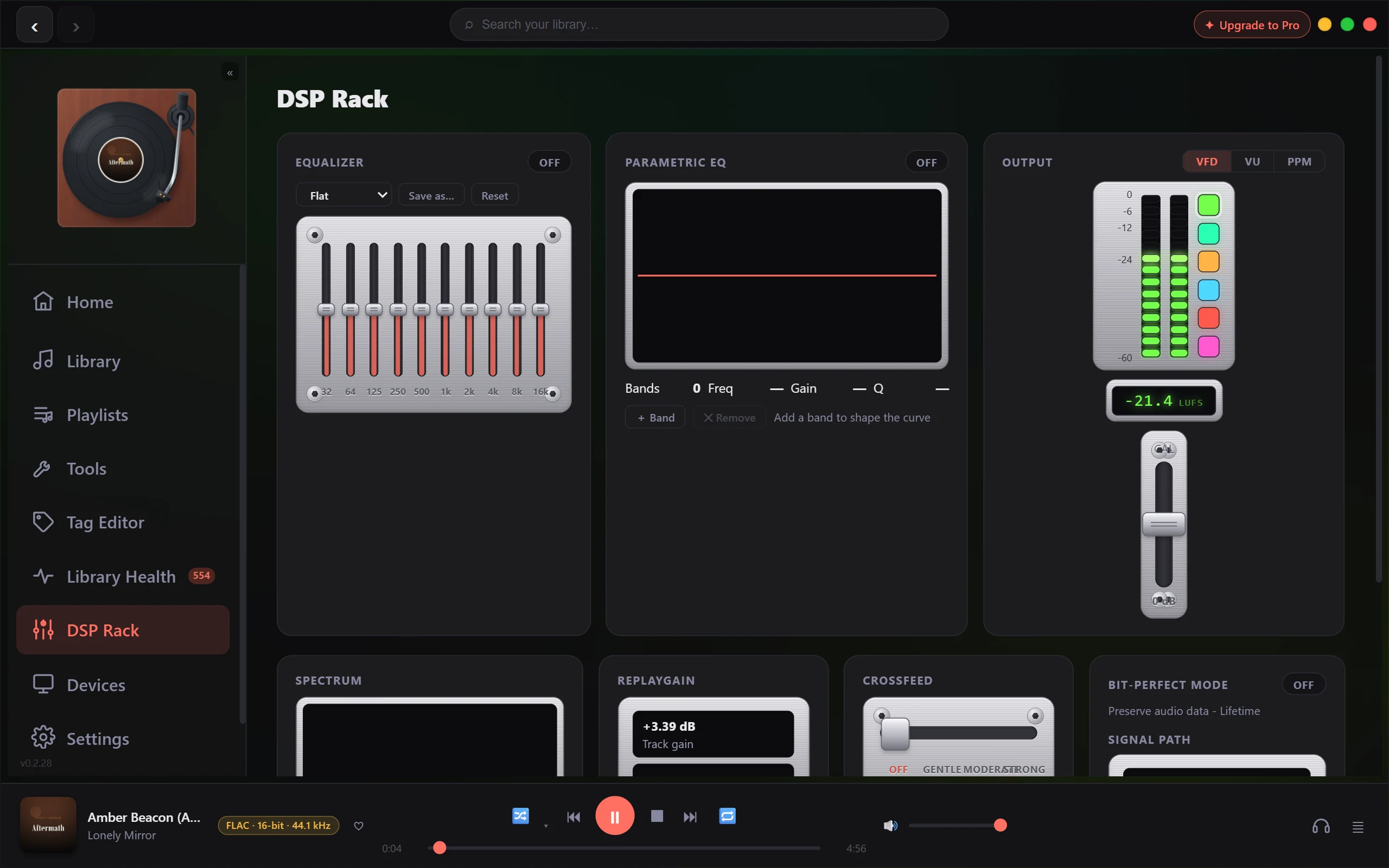
Open it from DSP Rack in the left navigation. It is a single screen with no sub tabs, laid out in two rows of panels.
The processors
Equalizer
Ten sliders, from 32 Hz up to 16k, each lifting or cutting its own band by up to 12 dB either way. Above them sit a preset picker, a Save as… button for storing your own curve under a name, and Reset to put every band back to the centre. The ON / OFF toggle in the panel header is the master switch for the whole curve. Full detail in The graphic EQ & presets.
Parametric EQ
The precision tool that sits next to the graphic one. The panel draws your response curve with a draggable node per band: move a node sideways to change its frequency, up and down for its gain, and scroll on it to widen or narrow the Q. Underneath, Bands counts what you have while Freq, Gain and Q read out the one you selected, and + Band and ✕ Remove change the count, up to 32. The same bands get a roomier editor in Settings on the Playback tab. See Parametric EQ - surgical tone control.
Crossfeed
One slider with four named stops, Off, Gentle, Moderate and Strong, for taking the hard left/right split out of headphone listening. The line under the slider spells out the stop you have landed on. See Crossfeed - easier headphone listening.
ReplayGain
Two glass readouts, Track gain and Album gain, showing what the playing track carries in its tags. Beneath them a Scan button measures that one track and refreshes the track figure. Scan writes ReplayGain tags into the file; the readouts on their own change nothing. See ReplayGain and loudness levelling.
The readouts
Output
The meter bay. A VFD / VU / PPM toggle in its header switches between a segmented peak display, an analogue average needle and an analogue peak needle, with a LUFS figure below and a calibration fader for whichever meter is showing. The VFD adds colour swatches for its phosphor. Nothing here touches the sound; it all taps the output to display it. Output meters - VFD, VU, PPM & LUFS covers what each one tells you.
Spectrum
A live bar display of the frequency content of what is playing. Nothing to set or switch, just the shape of the sound going past.
Signal Path
In the right-hand column, under the Bit-perfect switch, a short vertical readout of the journey stage by stage: Source (the playing file's format, depth and rate), Processing, and Output (the mode the stream ran in, Shared or WASAPI Exclusive). A Resample stage appears between Processing and Output only when the file's rate and the device's rate differ, so its presence answers "am I being resampled" on its own. Processing normally reads DSP Rack, and reads Bypassed when the switch above it is on. The signal path & the bit-perfect badge goes through what each stage means, and how the app reaches the verdict it shows you.
Bit-perfect mode
The one switch on this page that turns other things off. Armed, the engine forces the whole chain neutral: the Equalizer, the Parametric EQ, Crossfeed and ReplayGain stop touching the audio, and volume is held at unity. The three processor panels dim and pick up a Bypassed tag, while ReplayGain tags only its readouts. Your settings are kept and return the moment you switch it back off.
Arming the switch and the verdict the app reports on a stream are two separate questions, and they can disagree: the bypass happens on every output path, while the verdict is decided per stream. Bit-Perfect mode: the bypass switch, and the badge it is not sets out the difference.
What your tier changes here
Most of the rack is open to everyone.
- The Equalizer, Parametric EQ, Crossfeed and the Signal Path readout are part of the free tier.
- Bit-perfect mode is marked Lifetime in the app, and the audio engine enforces that itself rather than leaving it to the interface, so the switch cannot look like it is doing something it is not.
- The Track gain and Album gain readouts cost nothing, and ReplayGain applied during playback is free for everyone. The Scan button drives the ReplayGain scanner, a power tool with a free allowance that uncaps with Pro.
- Nothing on this page gates playback. There is no tier, and no licence state, in which your music stops.
For the whole picture, see Free, Pro & Lifetime - what each tier includes.
If a panel will not respond
Check the Bit-perfect mode switch first. A dimmed Equalizer, Parametric EQ or Crossfeed carrying a Bypassed tag is that switch doing its job, not a fault; everything comes back when you turn it off. ReplayGain is the odd one out: its readouts dim, but Scan keeps working, because measuring a file and applying a gain during playback are different jobs.
If a control still looks wrong after that, see Is this a bug? How to report it and say which panel and what you expected.
Related: Choosing an output mode · Output meters - VFD, VU, PPM & LUFS.