Help / Playback & output
Now Playing: the side pane and full screen
Vesari Stylus keeps the current track in front of you in three places: the player along the bottom of every page, a taller Now Playing pane on Home, and a full-screen view opened from that pane. All three read the same track, so they never disagree.
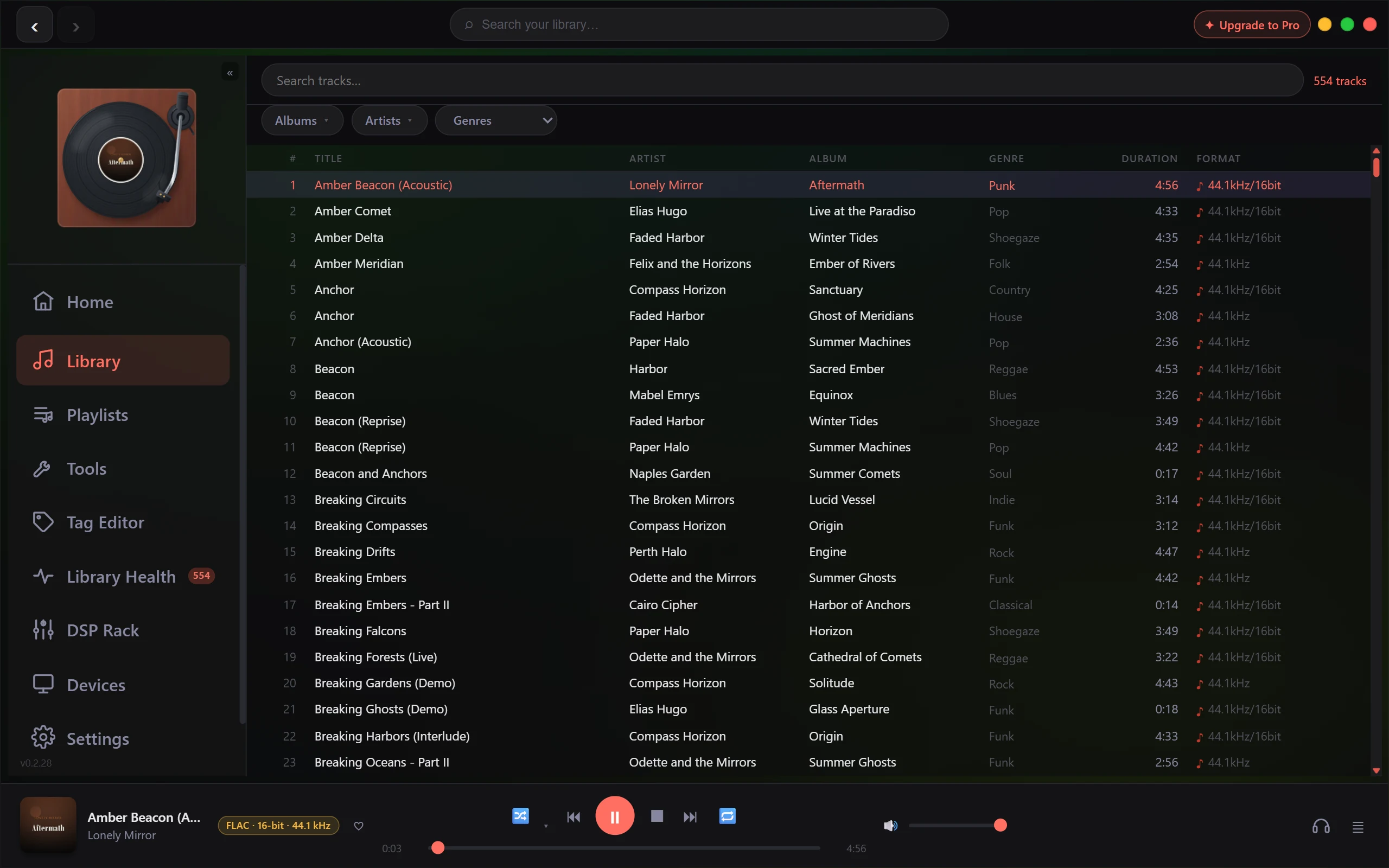
The player along the bottom
The left end of the bottom bar carries the cover, title, artist, a format badge and a heart, on every page.
The title is a link whenever the track carries an album tag: click it and Vesari jumps to Library filtered to that album. The artist works the same way when there is an artist tag. Neither interrupts playback; only the page changes.
The badge beside them is built from the file: its type, read off the extension, then bit depth and sample rate when the library has them, so a studio download reads FLAC, 24-bit, 96.0 kHz. Supported audio formats has the full list of what plays.
With nothing played and nothing selected the bar reads Nothing playing, though that is mostly a first-run sight: Vesari remembers your last played track and restores it once the library loads. Before anything plays, clicking a single library row fills the bar in too. Once playback starts that track holds the bar, and stopping does not release it, so clicking around the library no longer changes it.
The right end of the bar holds the output icon and the queue button, covered in The play queue & "Up Next".
The Now Playing pane on Home
Home adds a tall pane down the right-hand side, headed Now Playing, with a Full screen button in its top corner. With nothing playing and nothing selected, it says so and stops there.
Otherwise, top to bottom: artwork, elapsed and total time with a progress bar between them, the title and artist as plain text, the same heart, and two badges. That progress bar reports where you are but does not seek. Scrub from the bottom bar or from full screen.
The first badge reads Hi-Res when the track is deeper than 16-bit or faster than 48 kHz, and Lossless when it is not. It goes by depth and rate alone, so a lossy file at CD depth and rate still reads Lossless. The second badge names the file: format, then depth and rate rounded to whole kHz, so a CD rip reads FLAC 16/44 where the bottom bar spells out 44.1 kHz.
Track, Lyrics and Credits
Three icon tabs sit under the badges, tooltipped Track, Lyrics and Credits.
Track is a small table: Track Type, Duration, File, Bit Depth / Sample Rate, Codec, Added and Location. Track Type reads CUE Track for a track inside a single-file rip with a cue sheet, and Track for anything else. Location is the folder the file sits in, not the whole path.
Lyrics shows timed lyrics scrolling and highlighting in step with the music, and clicking any line jumps playback to it. Untimed lyrics appear as plain text instead. A track with neither offers Fetch from LRCLIB, and once lyrics are in place, Save .lrc writes them into a file beside the track. See What the online lookups send.
Credits lists only the tag fields your track actually carries, from composer and conductor through to label, catalogue number, ISRC and copyright. A track with none of them says so rather than showing an empty table. Fill the gaps with The tag editor - fix tags by hand.
The two shortcuts at the foot of the pane
Output Device names the device you are listening through, or System Default, with its rate under the name; clicking it opens Devices. See Choosing and switching output devices. Under that, EQ opens the DSP Rack. See What the DSP Rack does.
Full screen
The Full screen button opens a view that covers the window: large artwork on the left, the title, artist and album beside it, lyrics under those. Along the bottom is a seek bar you can click, or focus and drive from the keyboard: arrows move five seconds, Page Up and Page Down thirty, Home and End jump to the ends. Previous, play or pause, and next sit below it.
Close it with the close button in the corner or by pressing Esc. Shuffle, repeat, stop and volume live on the bottom bar, which this view covers, so leave it when you want them. See Shuffle, shuffle by album or artist, and repeat.
About the artwork
Artwork comes from a cover image beside the file first, and from a picture embedded in the file when there is none. When a track has neither, Vesari draws one itself: a small abstract landscape generated on your PC, seeded from the album name and genre, so every album gets its own image and keeps it every session. That generated cover is drawn locally and never fetched; going out for real cover art is a separate job you start yourself.
If a field here is blank or wrong, your tags are the place to fix it. If it is filled in your tags and still reads blank here, say so with the Report a Bug form under Settings, which sends your description with the last three days of logs, including file paths from your library. See Is this a bug? How to report it.