Help / Playback & output
The Devices page
Devices in the left sidebar is the app's read-out of your output: which device your music is going to, at what rate and depth, which engine is carrying it, and what the app made of the last stream it sent.
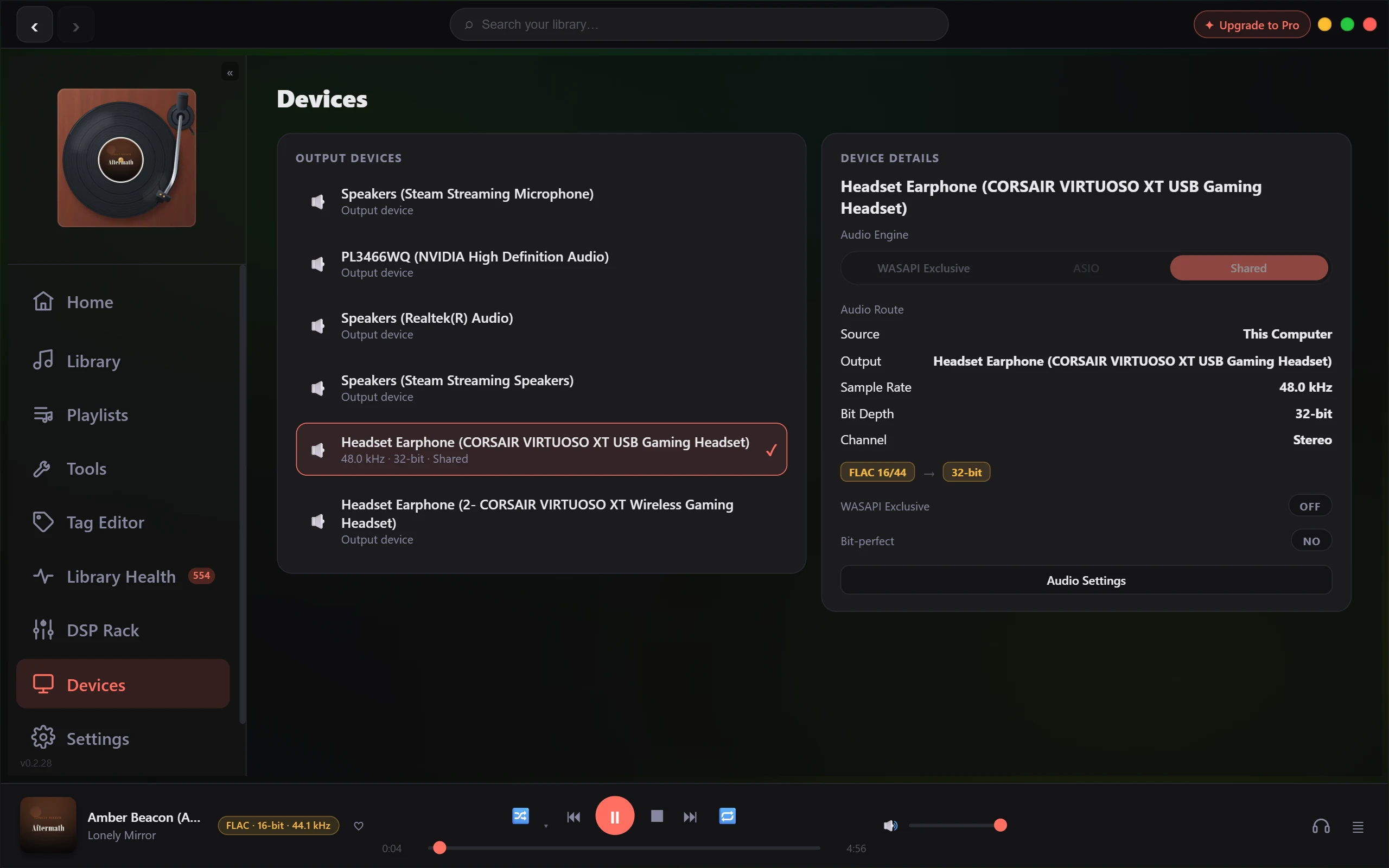
Output Devices
The left panel lists every output device Windows currently reports: speakers, an HDMI display, a USB DAC, anything connected and awake. If there are none, the panel says No output devices found.
One row carries a tick: the device the audio engine last opened. It marks what is playing now, and keeps the tick after you stop. Its second line gives the rate and depth that stream is running at, then the output mode currently selected: something like 48.0 kHz, 24-bit, Shared. Every other row reads Output device, and before anything has played no row has a tick.
The list is a read-out, not a picker. Vesari Stylus plays through whatever Windows has set as the default output, so device changes happen in Windows, not here. A shared stream follows that default if it changes mid-track, rebuilding on the new device and carrying on; an exclusive stream owns its device handle and does not hot-swap the same way. See The output device changed on its own.
Device Details
The right panel names a device at the top: the active one once something has played, otherwise the first in the list, or Default Output if the list is empty. Treat it as provisional until you press play.
Audio Engine
Three buttons: WASAPI Exclusive, ASIO, Shared. The highlighted one is where you are.
Shared and WASAPI Exclusive change the output mode for real, and at once: the app restarts the same track at the same position on the new mode, preserving play or pause. The pair behaves as one switch rather than as radio buttons, so pressing the button already highlighted moves you to the other mode.
ASIO is greyed out and does nothing, on every machine and in every build. The segment here was never wired to anything, and separately, ASIO output is not compiled into release builds, so the Settings picker greys it out too. ASIO is greyed out in the output list has the full story.
WASAPI Exclusive is a Lifetime feature. Without it, the button opens an upgrade prompt instead of switching and your mode stays as it was. What each mode is for is covered in Choosing an output mode.
Audio Route
Five rows describing the path:
| Row | What it shows |
|---|---|
| Source | This Computer |
| Output | the device named at the top |
| Sample Rate | the rate the device is running for this stream |
| Bit Depth | the depth the device is taking |
| Channel | Stereo. Fixed text, not a measurement |
Sample Rate and Bit Depth read as a dash until a stream has started: they come from the device the app opened, not from your settings.
Below them sit two badges with an arrow between: on the left the file, with its format plus bit depth and rate when the app knows them (FLAC 24/96, say), and on the right the bit depth the device is taking. That pair is the quickest way to spot a conversion.
WASAPI Exclusive
An ON/OFF row: the same setting as the Audio Engine buttons, gated the same way, but unambiguous about its state. It says what you have asked for, not what you got.
Bit-perfect
The row under it looks like a twin and is nothing of the kind. There is no button to press: it reports, it cannot be set. It describes one stream, the one playing now or the last one played, not the mode you picked.
- A dash means nothing has been measured yet. No stream has run since the app started, so there is no answer to give.
- YES is the app's verdict: it found nothing in that stream's path that would change the samples, exclusive output at the file's own rate, at or above its bit depth, with no resampling, no channel downmix, no DSP, and no volume or ReplayGain adjustment.
- NO means either that something in the path altered the samples, or that the app could not follow the path end to end. A Shared stream reports NO for that second reason, and an ASIO one would too.
Because the row belongs to a stream and not a setting, an exclusive stream can read NO: switch on the EQ, play a file the device must resample, feed it a multichannel source, or move the volume off unity, and the answer changes. Stop playback and the row keeps describing the stream that just finished, so read it as history. If it is not saying what you expected, Why the bit-perfect badge is not lit works through the reasons, and Bit-perfect mode covers the Settings switch that forces the chain neutral.
Audio Settings
The button at the foot of the panel opens Settings on the Playback tab, where the Audio Output group lives: the Output mode picker and the Device compatibility overrides. Every setting, explained covers the rest.
If a row looks wrong
This page reports what the audio engine measured for the stream it ran. If a row disagrees with what you hear, note the device, the mode and the file and send it from Settings, Support tab, Report a Bug. See Is this a bug? How to report it.