Help / Your library
The Home screen, panel by panel
Home is where Vesari Stylus opens: a few numbers about your collection, an album to start with, your playlists, your queue, and a panel following whatever plays.
Home is two columns: a wide left column that scrolls through the panels below, and a narrow Now Playing column that scrolls on its own and stays in view. Below roughly 1180 pixels of window width the two stack, with Now Playing underneath.
The greeting and the four tiles
At the top is a greeting that reads off your computer's clock: Good morning before noon, Good afternoon until 6pm, Good evening after that.
Under it sit four tiles.
- Tracks counts every row the scan produced, including duplicate copies, files that would not decode and the container file behind a cue sheet, so it can read higher than the count on the Library page. Library Health measures its own figure against this same total, so the two can never contradict each other.
- Lossless is the share of your playable tracks held in a lossless container, worked out from the file extension.
- Hi-Res counts playable tracks recorded deeper than 16 bit or faster than 48 kHz. Both quality tiles cover only music you can play, while Tracks counts everything, so they never reconcile.
- Library Health is a button rather than a stat. It shows how many tracks have something worth fixing, or the word Healthy when none do, and opens the Library Health page. See Library Health & finding duplicates and Every Library Health category, explained.
Featured for you
The large panel picks one album: the album that is playing, or failing that the album of the track you last selected, or failing that the first album in your library by name.
It shows that album's own cover, title and artist, and a badge read from its first track: format, bit depth, sample rate and genre where the file carries one. Play Now starts the album from that track, Go to album opens it in the Library, and the heart stars it.
Made for You
Beside it, Made for You lists up to five of your playlists with their track counts. Select one to open it. See Playlists.
Recent from Local Tracks
A single row of up to ten album covers. Select a cover to play that album, or right-click one to open it in the Library instead.
Despite the heading, the row runs in album-name order rather than by when you added the music, so it changes little between sessions. Albums split across inconsistent album artist tags merge into one tile rather than repeating.
Rediscover
Below that come shelves drawn from your own play history, plus a Rediscover Mix button that blends them into one queue. The section stays hidden until there is listening behind it, and has its own article: Rediscovery - surface music you forgot.
Queue
The last panel is the Queue: the track playing now, followed by the tracks you queued by hand. It is not the album's running order, so an album started with Play Now and nothing queued behind it shows one row. The header counts those rows and totals their time; Clear appears once you have queued something. Up to eight rows are drawn. Double-click a row to play it, or focus it and press Enter or Space. See The play queue & "Up Next".
The Now Playing pane
The right column follows the playing track, or the selected one when nothing is playing. Top to bottom: the cover, a progress bar with elapsed and total time, the title and artist with a heart, then two badges.
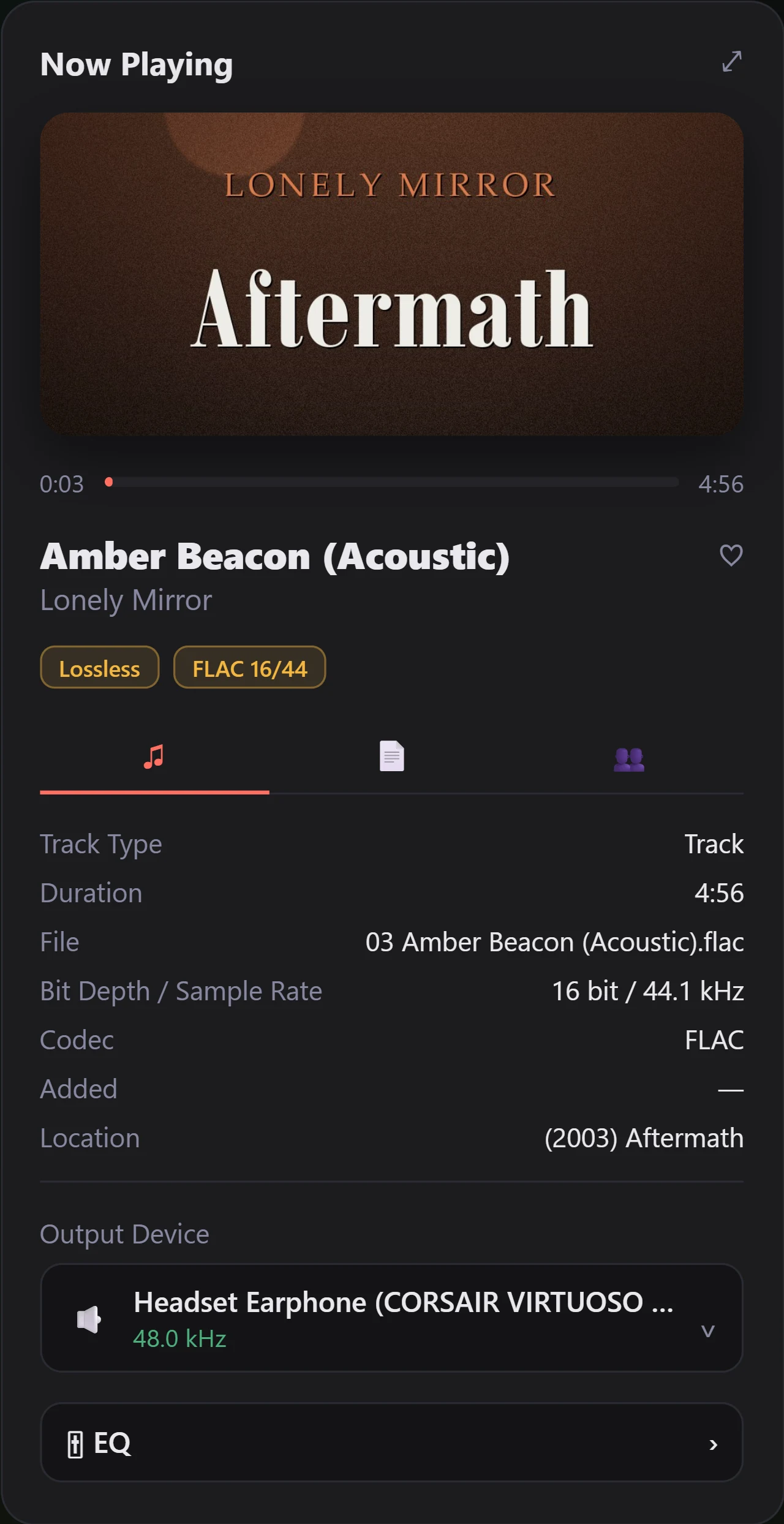
The first badge has two settings only: Hi-Res for anything deeper than 16 bit or faster than 48 kHz, and Lossless for everything else, lossy files included, so take it as a rough grade. The second is the literal one, naming the file type with its bit depth and sample rate.
Under those, three tabs marked by icon.
- Track lists the plain facts: track type, which reads CUE Track for anything from a cue sheet, then duration, filename, bit depth and sample rate, codec, an Added date and the folder the file sits in. Added is not the day the file joined your library but the last time Vesari Stylus wrote tags to that track, by lookup or by your own edit; it reads as a dash when it never has.
- Lyrics scrolls timed lyrics with the track when it has them, falls back to plain lyrics, and otherwise offers Fetch from LRCLIB. See Lyrics.
- Credits lists only the credit fields your file carries, such as composer, conductor, label, catalogue number and ISRC. A file with none says so.
At the foot, a button naming your output device, System Default until you choose one, opens Devices. Under the name it gives the rate that device is running at, when it has one. That is the device's rate, not always the file's. An EQ button opens DSP Rack, and the expand control at the top right opens a full-screen player.
What an empty library shows
Nothing is hidden and nothing nags. The number tiles read zero, Library Health reads Healthy, the featured panel and Recent row are blank, Made for You says your playlists will show up there, Rediscover is not drawn, the queue says nothing is queued, and Now Playing says nothing is playing. Add a folder and the panels fill in by themselves. See Add your music (the first scan).