Help / Your library
Finding music: search, filters and the three views
Vesari Stylus has two search boxes that do different jobs, plus a row of controls that changes how the Library is laid out. Once you know which does what, finding one track in fifty thousand takes seconds.
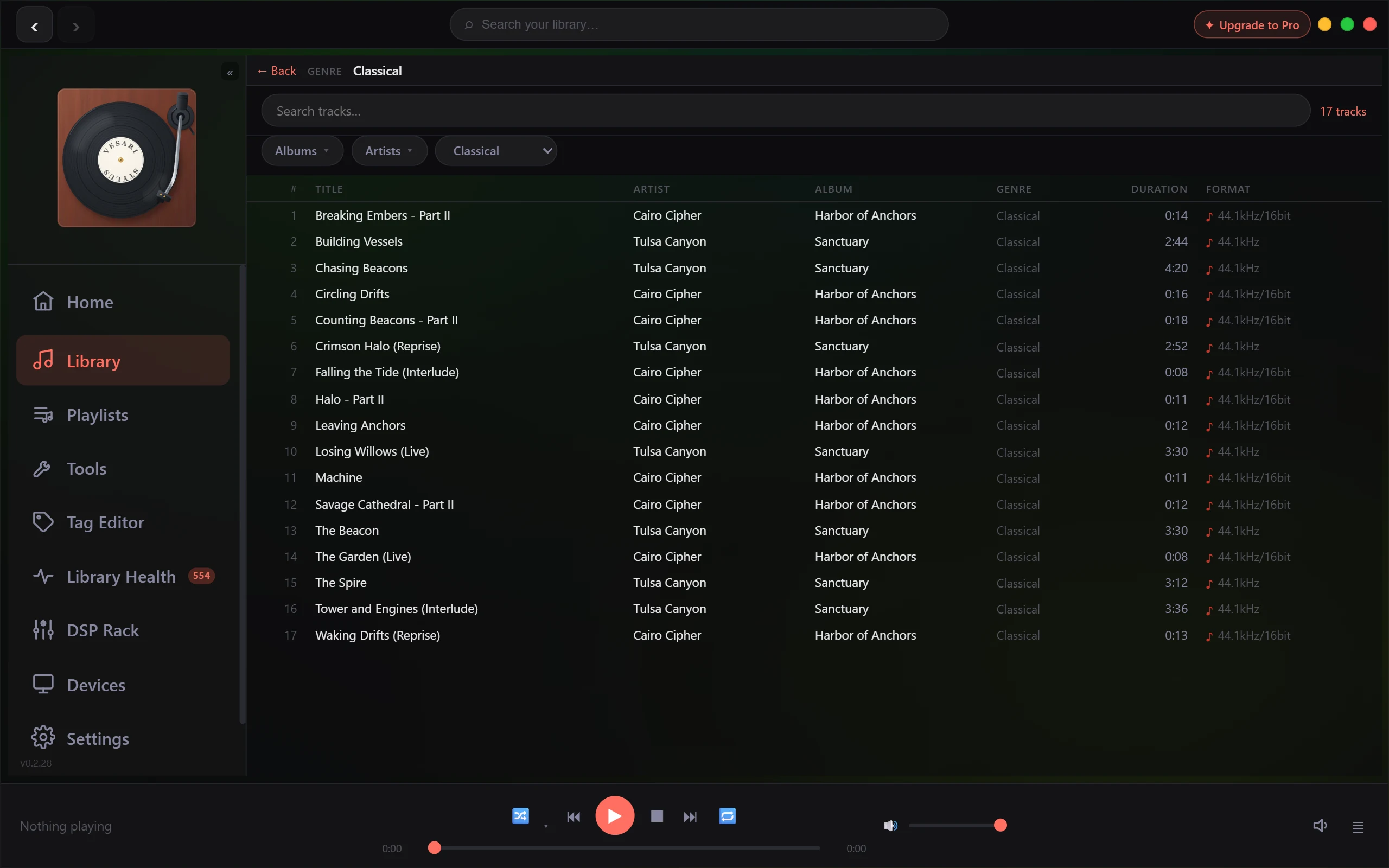
The two searches
The box in the title bar is the jump. It sits in the middle of the top strip, marked Search your library, and it is the one search on every page. Type words and press Enter; nothing happens while you type. On Enter, Vesari Stylus switches to the Library, puts it in the track list view, drops any album, artist or genre filter, closes an open playlist, and shows what matched.
The Search tracks box is the narrowing. It sits at the top of the Library track list and filters as you type, after a short pause so it is not re-filtering on every keystroke. A small cross clears it. To its right is a count of the tracks on show, which reads scan progress while a scan is running.
Both boxes drive the same underlying search, so words submitted from the title bar turn up in the Search tracks box when you land there. Not in reverse, though: clearing the Search tracks box does not blank the title bar.
What a search actually matches
Track search looks at four fields: title, artist, album and genre. It ignores capitals and matches anywhere in the text, so "rain" finds "Brainwashed". It does not search filenames, folder names, composer, lyrics or comments, so a track with empty tags cannot be found by name. See Tracks show wrong tags, or "no metadata found".
The three views
The row under the search box holds the view controls. It lives in the track list only, so from a grid the ways back out are the title bar back arrow and Library in the left rail.
Tracks is the default: a numbered flat list with columns for title, artist, album, genre, duration and format.
Albums switches to a grid of covers with its own Search albums box, which matches album titles and artist names and counts matches against the total. Selecting a cover opens that album as a filtered track list in running order. The play button on a cover starts the album and opens it at the same time.
Artists is the same for performers. Its Search artists box matches artist names only. Selecting an artist opens their tracks, and the bar above gains a toggle between album by album order and a flat list sorted by title.
The grid searches filter the tiles in front of you and nothing else: they never touch the track list, and text sitting in Search tracks does not thin the grids. The text does carry between the grids, so switching from Albums to Artists keeps what you typed.
The Genres dropdown
Beside the two view buttons, a Genres dropdown lists every genre in your library, alphabetically. It only appears if at least one track carries a genre tag. Choosing one opens a filtered track list, labelled Genre in the bar above it, as does clicking a genre in the track list itself.
The blank Genres entry at the top is a label, not a reset: selecting it does nothing. Clear a genre with Back in the filter bar.
How they combine
Filters stack in a fixed order: the text search runs first, then the album, artist or genre filter narrows what survived it.
That order explains the most common surprise in the Library, an album that looks like it is missing tracks. Search for something, then browse to an album, and you get only the tracks that match, with the search text sitting in the Search tracks box the whole time. Clear it and the rest of the album reappears. See An album looks incomplete or shows twice.
Two other bars can hide rows, but never both at once:
- In the plain track list, a bar counting the duplicates and damaged files it is holding back, with a toggle that reveals them and a Review duplicates button. It never appears inside an album, artist or genre view. See Why do I see two different "duplicate" numbers?.
- A Library Health bar, when you arrived by selecting a category there. It names the category and carries its own Clear. While it is up, nothing is held back as a duplicate or damaged file: you see every row the card counted. It survives a new search, so clear it when you are done. See Library Health & finding duplicates.
Clearing everything
- Back in the filter bar leaves an album view for the Albums grid and an artist view for the Artists grid, whichever route brought you there. On a genre filter it just removes the genre.
- The cross in the Search tracks box clears the text search, and Clear on the Library Health bar drops a health filter.
- Library in the left rail is the reset: it returns you to the track list, drops the album, artist and genre filter and closes any open playlist. It leaves your typed search and any health filter alone, so both survive it.
If the Library still looks short after all that, the tracks are probably absent rather than filtered. See I added music but the app does not see it.