Help / Troubleshooting
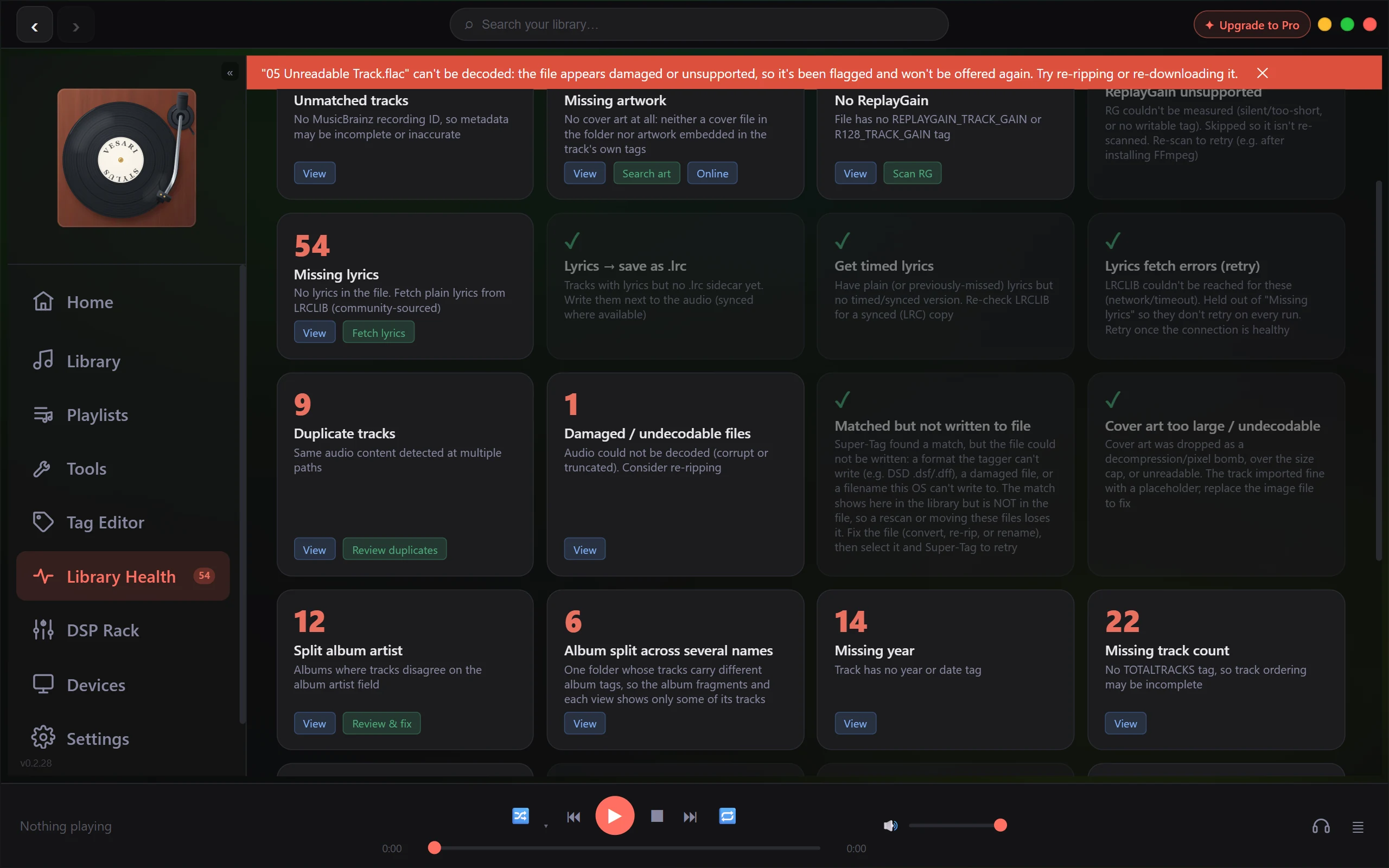
A track won't play or is flagged damaged
When a single track refuses to start - or shows up marked as damaged or a decode error - it's almost always that one file, not your whole library. Here's how to tell what's wrong and get playing again.
The short answer
If a track won't play, the file itself usually can't be read. Three things cause this:
- The file is corrupt or truncated - an incomplete download, a bad copy, or a file that was cut off mid-write.
- The file is in a surround format - most often DTS, AC-3 (Dolby Digital), or TrueHD. These play using a decoder that's included with the app, so they normally work; if they don't, that bundled decoder may have been blocked.
- The file is an unusual variant that the built-in playback can't fully read.
Work through the steps below to find out which one it is.
Try these steps
- Play the same file in another player (for example, VLC or Windows Media Player). This is the fastest test. If it also fails, or plays with dropouts and glitches, the file itself is damaged - re-rip it, download it again, or restore a known-good copy.
- Check the format. Vesari Stylus plays FLAC, MP3, AAC, OGG, WAV, AIFF, WavPack and more - and DTS, AC-3, and TrueHD through a decoder that ships inside the app. All of these should play with nothing extra to install.
- If it's a surround track (DTS/AC-3/TrueHD) that won't play, the app's built-in decoder may have been quarantined by antivirus or lost in a bad install. Check your security software's quarantine, then reinstall Vesari Stylus to restore it and restart.
- Try the track again. If the format is supported and the file is intact, it should play.
If it plays elsewhere but not in Vesari Stylus
That's the one case that points at the app rather than the file. If a track plays cleanly in another player but Vesari Stylus won't start it or flags it as damaged, please report it so we can look into it. Use the in-app report option and include the file's format - and, if you can, the track itself or a short description. That's exactly what we need to track it down.
Why the rest of your library keeps working
A single unreadable file doesn't take the rest of your music down with it. Problem tracks are gathered together under Library Health, so you can review, replace, or remove them in one place whenever it's convenient - and you can filter them out of your main view in the meantime. One bad file is a small housekeeping task, not a broken library.